WordPress Image Optimization for SEO: Complete Checklist
Images are crucial for user engagement, but improperly optimized images can destroy your SEO. This comprehensive checklist covers everything you need to know about WordPress image optimization for search engines in 2026.
Why Image Optimization Matters for SEO
Google's algorithm considers multiple image-related factors when ranking pages:
- Page Speed: Large, unoptimized images slow down your site. Page speed is a direct ranking factor.
- Image Search: Google Images drives significant traffic. Properly optimized images rank higher in image search results.
- User Experience: Fast-loading, properly sized images reduce bounce rate, which impacts rankings.
- Mobile Performance: With mobile-first indexing, image optimization is critical for mobile users.
QUICK STAT
Images account for roughly half of the average webpage's total weight, around 1MB of a typical 2.2MB page according to HTTP Archive data. Optimizing them can improve load times by 50% or more.
The Complete Image SEO Checklist
File Format Selection
Choosing the right image format is the foundation of optimization. Learn how to convert your WordPress images to WebP.
WebP (Recommended)
- 25-35% smaller than JPEG at the same quality
- Supported by 97%+ of browsers as of 2026
- Best for photos, graphics, and most use cases
AVIF (Cutting Edge)
- 50% smaller than JPEG, 20% smaller than WebP
- Broad browser support (93%+ as of 2026)
- Use with WebP fallback for maximum savings
JPEG (Legacy Fallback)
- Still necessary as fallback for older browsers
- Use progressive JPEGs for better perceived performance
- Optimize quality to 75-85% for web use
PNG (Specific Use Cases)
- Only use for images requiring transparency
- Consider WebP with transparency instead (smaller)
- Compress PNGs before upload
File Size Optimization
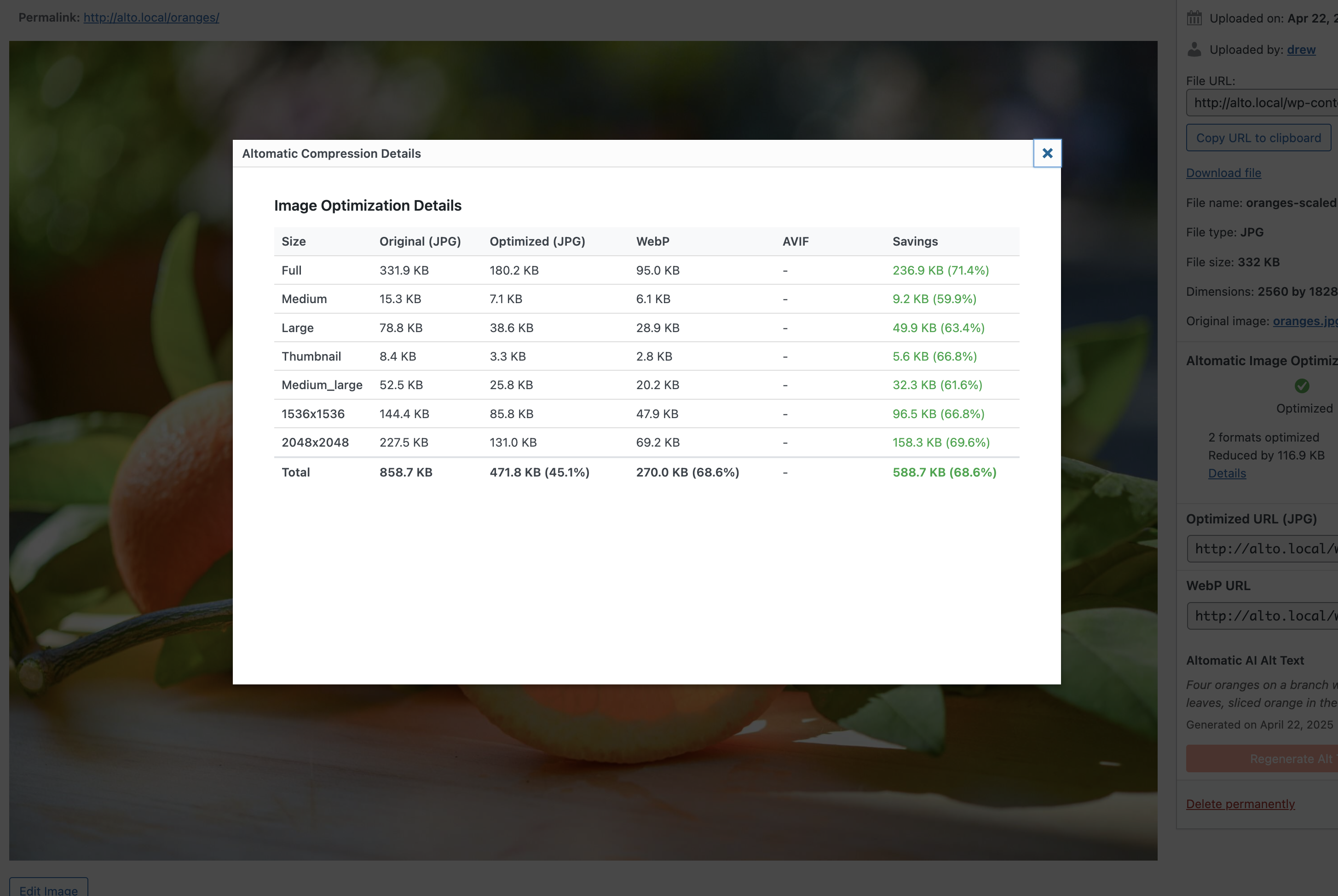
Actionable steps:
- Compress images before uploading, or better, let a plugin like Altomatic compress them automatically on upload
- Set WordPress to generate appropriately sized thumbnails
- Avoid uploading images larger than they'll be displayed
- Use responsive images with srcset attributes
Descriptive Alt Text
Alt text is one of the most important on-page SEO factors for images. If you have hundreds of images, learn how to bulk add alt text to WordPress images.
GOOD EXAMPLE
"WordPress dashboard media library showing bulk optimization interface"Descriptive, includes relevant keywords naturally, helps both users and search engines
AVOID THIS
"IMG_2847.jpg" or "dashboard" or "click here"Not descriptive, misses SEO opportunity, doesn't help users
Alt text best practices:
- Keep it under 125 characters (screen reader sweet spot)
- Include target keywords when relevant and natural
- Describe the image's content and purpose
- Skip "image of" or "picture of" - screen readers announce it's an image
- Leave alt text empty for purely decorative images
For the full treatment, including examples for different image types, see our alt text SEO best practices guide.
Descriptive File Names
File names are a ranking factor. Rename images before uploading.
GOOD EXAMPLE
wordpress-image-optimization-dashboard.jpgAVOID THIS
IMG_4892.jpg, photo1.jpg, screenshot.png- Use descriptive, keyword-rich file names
- Separate words with hyphens, not underscores
- Use lowercase letters
- Keep names concise but descriptive
Image Dimensions
Never upload images larger than they'll be displayed on your site.
Common WordPress image sizes:
- Hero images: 1920px × 1080px (max)
- Featured images: 1200px × 630px
- Blog post images: 800px × 600px
- Thumbnails: 300px × 300px
Lazy Loading
WordPress includes native lazy loading since version 5.5. Images load only when users scroll to them.
Verify lazy loading is active:
- WordPress adds loading="lazy" automatically to images
- Check your page source to confirm
- For older WordPress versions, use a lazy loading plugin
- Exclude above-the-fold images from lazy loading
Image CDN (Content Delivery Network)
CDNs serve images from servers closest to your users, dramatically improving load times globally.
- Use a CDN like Cloudflare, BunnyCDN, or StackPath
- Or use WordPress-specific CDNs (Jetpack, WP Rocket)
- Most optimization plugins include CDN features
- Typical speed improvement: 40-60% for international users
Responsive Images
WordPress automatically generates multiple image sizes and uses srcset. Verify it's working correctly.
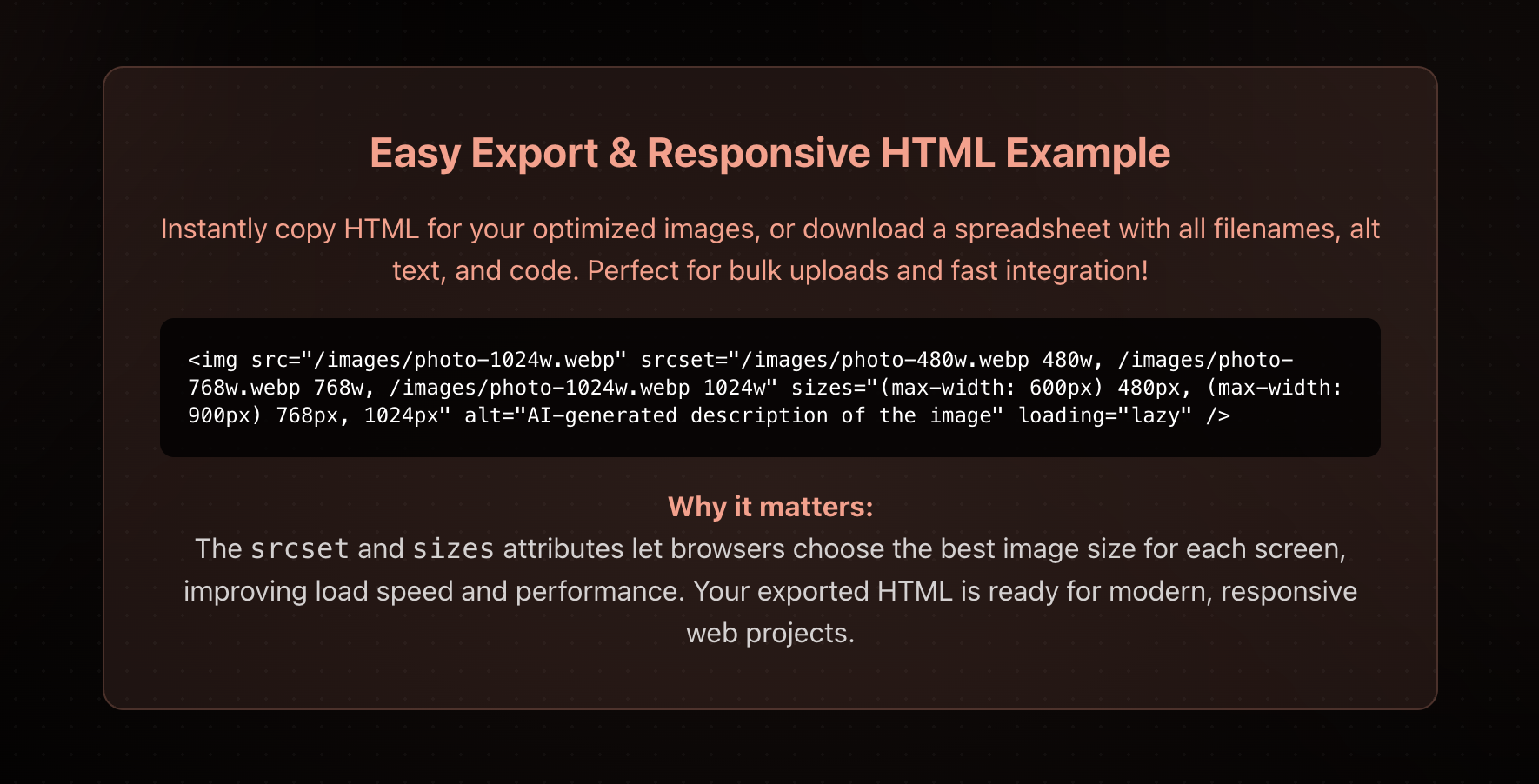
Check your responsive images:
- Inspect an image on your site (right-click → Inspect)
- Look for srcset attribute with multiple image sizes
- If missing, check theme or page builder settings
- Ensure your theme supports responsive images properly
Image Sitemap
Help Google discover and index all your images with an image sitemap.
- Use Yoast SEO or Rank Math to auto-generate image sitemaps
- Submit your sitemap to Google Search Console (Indexing → Sitemaps)
- Check image search performance in GSC: Performance → Search results → Search type: Image
- Update sitemap whenever you add new images
Structured Data for Images
Add schema markup to help search engines understand your images better.
- Use ImageObject schema for important images
- Include for product images, recipe photos, article images
- Most SEO plugins add this automatically
- Test with Google's Rich Results Test tool
Common WordPress Image SEO Mistakes
Uploading uncompressed images
Uploading 5MB images straight from your camera kills page speed. Always compress first.
Ignoring mobile image sizes
Desktop users might not notice a 2MB hero image. Mobile users on 4G definitely will.
Using images as text
Google can't read text in images well. Use HTML text instead of image-based headlines.
Keyword stuffing alt text
Alt text like "buy WordPress hosting WordPress cheap WordPress hosting best WordPress hosting" triggers spam filters.
Hotlinking images
Linking to images on other sites slows your site and risks broken images if they remove them.
How to Audit Your Current Images
Before optimizing, audit your existing images to understand what needs fixing.
1. Use Google PageSpeed Insights
- Test your homepage and top pages
- Look for "Properly size images" and "Serve images in next-gen formats"
- Note specific images that need optimization
2. Check Google Search Console
- Go to Performance → Search results and set Search type to Image
- See which pages already earn image search clicks and impressions
- Check Indexing → Pages for crawl or indexing errors on media-heavy pages
3. Review Your Media Library
- Go to Media → Library in WordPress
- Check random images for alt text
- Look at file sizes (anything over 200KB needs optimization)
- Verify file names are descriptive
Quick Wins: Do These First
If you're overwhelmed, start with these high-impact, quick tasks:
- Install an image optimization plugin
Automate compression and format conversion for future uploads
- Add alt text to your top 20 pages
Focus on your most-visited content first
- Convert hero images to WebP
Above-the-fold images have the biggest impact on Core Web Vitals
- Enable lazy loading
Built into WordPress 5.5+, just verify it's working
- Submit image sitemap
2 minutes of work for better image indexing
Measuring Success
Track these metrics to see the impact of your image optimization:
- Google PageSpeed Insights score: Aim for 90+ on mobile
- Largest Contentful Paint (LCP): Should be under 2.5 seconds
- Total page size: Target under 1MB for most pages
- Image search traffic: Check Google Search Console → Performance → Image
- Bounce rate: Should decrease as pages load faster
Frequently Asked Questions
Does alt text actually affect Google rankings?
Yes, in two ways. Alt text is the primary signal Google uses to understand and rank images in Google Images, which can drive meaningful traffic on its own. It also reinforces the topical relevance of the page it sits on. It won't rescue a weak page, but on a competitive query it's a free signal your competitors may be missing.
Which image format is best for SEO in 2026?
WebP is the safe default: 25-35% smaller than JPEG with 97%+ browser support. AVIF compresses even harder (about 50% smaller than JPEG) and support has passed 93%, so serving AVIF with a WebP fallback captures the best of both. Format choice affects SEO indirectly, through page speed, so smaller is better as long as quality holds.
What file size should WordPress images be?
As a rule of thumb: hero images under 150KB, featured and content images under 100KB, thumbnails under 30KB. Anything over 200KB is worth investigating, and total page weight should stay under about 1MB. Modern formats plus 75-85% quality compression hit these targets without visible quality loss.
Should I optimize images before or after uploading to WordPress?
Either works, but automation after upload is more reliable long-term. Pre-upload optimization depends on every contributor remembering to do it, and it can't retroactively fix the thousands of images already in your library. A plugin that compresses on upload and can bulk-process existing images removes the human step entirely.
Automate Your Image Optimization
Stop manually optimizing images. Altomatic automatically compresses, converts to modern formats, and generates SEO-friendly alt text for all your WordPress images.