Why Your WordPress Site is Slow: Image Optimization Guide
If your WordPress site loads slowly, there's a good chance images are the problem. Most site speed issues I've diagnosed trace back to unoptimized images. Here's how to find and fix them.
The Real Cost of Slow Images
Images make up the majority of page weight on most WordPress sites. When they're not optimized, everything suffers. Your bounce rate increases. Your search rankings drop. Users leave before your content even loads.
Google's data shows that as page load time increases from 1 second to 3 seconds, bounce rate jumps by 32%. Most of that delay comes from images that are too large, wrong format, or loading when they shouldn't be.
Common Image Problems Killing Your Speed
Unoptimized Camera Photos
Uploading 3MB photos straight from your phone without compression. Every page view downloads the full-resolution image even when it displays at a fraction of that size.
Oversized Dimensions
Uploading 4000×3000px images that display at 800×600px on your site. You're forcing users to download 80% more data than necessary.
Outdated File Formats
Still using JPEG and PNG when WebP and AVIF can deliver the same quality at 30-50% smaller file sizes.
Missing Lazy Loading
Loading all 50 images on page load instead of loading them as users scroll. This wastes bandwidth and slows initial page render.
Diagnosing Your Image Problems
Before fixing anything, figure out exactly what's wrong. Here's how to diagnose image performance issues.
Run Google PageSpeed Insights
Go to pagespeed.web.dev and test your homepage. PageSpeed Insights will identify specific image problems and show you which images need optimization.
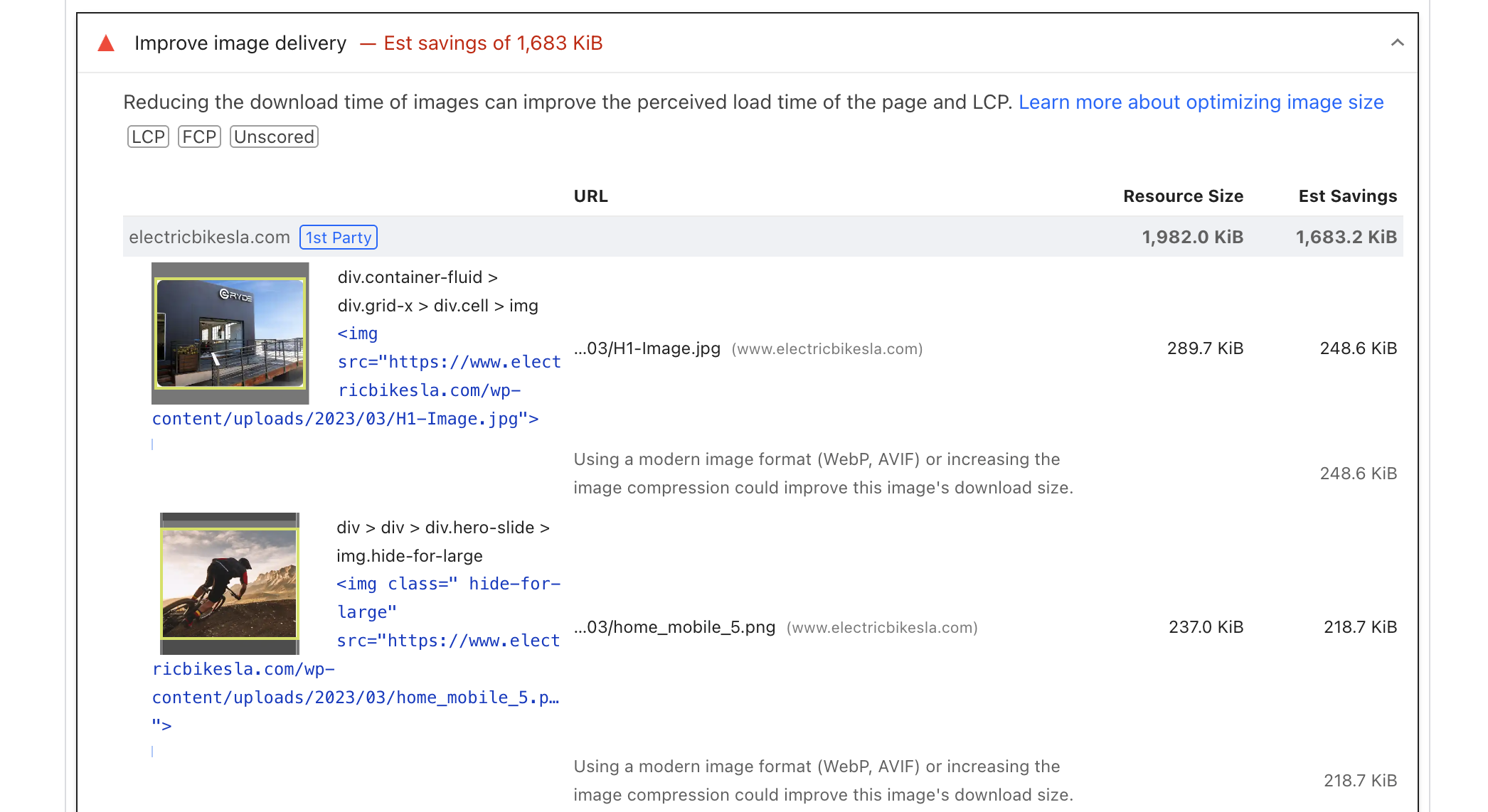
Look for these warnings:
- Serve images in next-gen formats means you need WebP or AVIF
- Properly size images means your images are too large for their display size
- Efficiently encode images means images need better compression
- Defer offscreen images means lazy loading isn't working
Check Your Largest Images
Scroll to the diagnostics section in PageSpeed Insights. Look for "Avoid enormous network payloads" to see your largest files.
Target File Sizes
- Hero images: Under 150KB
- Featured images: Under 100KB
- Content images: Under 75KB
- Thumbnails: Under 30KB
If you see images over 200KB, they're definitely hurting your performance.
Test Largest Contentful Paint
LCP measures how long it takes for your largest above-the-fold element (usually an image) to load. Google uses this as a ranking factor. For a deeper dive into LCP and layout shift fixes, see our guide to fixing Core Web Vitals image issues in WordPress.
Good: Under 2.5 seconds
Needs improvement: 2.5-4 seconds
Poor: Over 4 seconds
If your LCP is slow, optimizing your hero image should be your first priority.
Audit Your Media Library
Go to Media → Library in WordPress and switch to list view. WordPress doesn't show a sortable file size column by default, so click into individual images and check the File size value in the attachment details sidebar. Anything over 500KB is a problem.
If you have SSH access, this one-liner finds every oversized image in your uploads folder instantly:
find wp-content/uploads -type f \
  \( -name "*.jpg" -o -name "*.jpeg" -o -name "*.png" \) \
  -size +500k -exec ls -lhS {} +
The output is sorted largest-first, which doubles as your optimization priority list.
How to Fix Image Performance Issues
Problem: Uncompressed Photos
What's happening:
Modern cameras produce 3-8MB images. Uploading these directly without compression destroys page speed.
How to fix it:
- Install an image optimization plugin
- Compress images before uploading or set up automatic compression
- Target 75-85% quality for web images
Problem: Displaying Huge Images at Small Sizes
What's happening:
You upload a 3000×2000px image but display it at 600×400px. Users download 5x more data than necessary.
How to fix it:
- Resize images to match their actual display size before uploading
- Use WordPress's responsive images feature (srcset)
- Let WordPress generate appropriate thumbnail sizes
Problem: Using Old Image Formats
What's happening:
JPEG and PNG are from the 1990s. Modern formats like WebP are 25-35% smaller with identical visual quality.
How to fix it:
- Convert existing images to WebP or AVIF
- Set up automatic conversion for new uploads
- Keep fallbacks for the small percentage of browsers without WebP support
Real Example
Problem: No Lazy Loading
What's happening:
Loading all images immediately, even ones below the fold that users might never see.
How to fix it:
- WordPress 5.5+ has native lazy loading built in
- Verify it's enabled by checking for loading="lazy" in your image tags
- For older WordPress versions, use a lazy loading plugin
- Don't lazy load above-the-fold images
Your Image Optimization Action Plan
Fix your image problems in this order for maximum impact:
Fix Your Hero Image First
This has the biggest impact on Largest Contentful Paint. Compress it under 150KB, convert to WebP, and make sure it's sized correctly for display.
Expected improvement: 1-2 seconds off LCP
Optimize Your Top 10 Pages
Check Google Analytics for your most-visited pages. Optimize all images on those pages first. This gives you the best return on effort.
Install an Image Optimization Plugin
Choose a plugin that handles compression and format conversion. Configure it to auto-optimize new uploads so you don't repeat this problem.
Bulk Optimize Everything Else
Process your entire media library in batches. Start with the largest files first. Monitor server load to avoid crashes. This can take hours for thousands of images.
Verify and Monitor
Re-run PageSpeed Insights to confirm improvements. Set up monitoring for Core Web Vitals. You should see 40-60% improvement in page load times.
Quick Wins You Can Do Today
5-Minute Fix
Compress and convert just your homepage hero image to WebP. This alone can improve your PageSpeed score by 10-15 points.
15-Minute Fix
Install an image optimization plugin, configure it, and set it to auto-optimize new uploads. Future you will be grateful.
30-Minute Fix
Optimize all images on your top 5 most-visited pages. Check Analytics to find them, then compress and convert everything on those pages.
1-Hour Fix
Start bulk optimization of your entire media library. Set it running in the background while you work on other things.
How to Measure Success
After implementing fixes, track these metrics. Faster images also compound with your search visibility work: the same optimization pass is step one of our WordPress image SEO checklist.
Mistakes to Avoid
Optimizing only new images
Your existing library is probably the real problem. Bulk optimize everything, not just future uploads.
Over-compressing images
Quality below 70% usually shows visible artifacts. Stick to 75-85% quality for web use.
Lazy loading above-the-fold images
Your hero image should NOT be lazy loaded. It needs to load immediately for good LCP scores.
Not testing on real mobile devices
Desktop browser resize doesn't accurately represent mobile performance. Test on actual phones.
Frequently Asked Questions
How do I find which images are slowing down my WordPress site?
Run your homepage through PageSpeed Insights (pagespeed.web.dev) and check the "Properly size images", "Serve images in next-gen formats", and "Efficiently encode images" audits. Each one lists the specific image files and how many kilobytes you'd save. For a site-wide view, check your uploads folder for files over 500KB, since those are almost always the worst offenders.
Does WordPress compress images automatically?
Not really. WordPress generates smaller thumbnail sizes on upload and applies light JPEG compression to those, but it never touches your original file and doesn't convert anything to WebP or AVIF. A 4MB camera photo stays 4MB in your library forever unless a plugin or external tool compresses it.
Will compressing images make them look worse?
At sensible settings, no. Compression at 75-85% quality is visually indistinguishable from the original for web viewing while cutting file size by 60-75%. Visible artifacts typically only appear below 70% quality, or when an already-compressed image is compressed again, which is why you should run only one optimization plugin.
How much faster will my site be after optimizing images?
On image-heavy sites, expect a 40-60% improvement in page load time and often 1-2 seconds off Largest Contentful Paint from fixing the hero image alone. Results depend on how bad your starting point is: a site serving 3MB JPEGs will see dramatic gains, while a site that's already lean will see smaller ones.
Automate Your Image Optimization
Stop manually optimizing images. Altomatic automatically compresses, converts to WebP/AVIF, and generates SEO-friendly alt text for all your WordPress images. Fix your slow site in one afternoon.