How to Bulk Add Alt Text to WordPress Images
If you have hundreds or thousands of WordPress images without alt text, manually adding them one by one would take forever. This guide shows you how to bulk add alt text to all your WordPress images efficiently.
Why Alt Text Matters
Alt text (alternative text) serves two critical purposes:
- Accessibility: Screen readers use alt text to describe images to visually impaired users
- SEO: Google uses alt text to understand image content and rank your pages in image search
Missing alt text is one of the most common WordPress SEO mistakes. If your site has been around for years, you likely have thousands of images without proper descriptions.
NOT SURE WHERE YOU STAND?
Before you start fixing anything, run our free Alt Text Checker to see how many images on your site are missing alt text. Paste any page URL and get a graded report in seconds.
Method 1: Manual Bulk Editing in WordPress
WordPress has a built-in bulk editing feature, but it's tedious for large libraries.
Step 1: Access Your Media Library
Navigate to Media → Library in your WordPress dashboard.
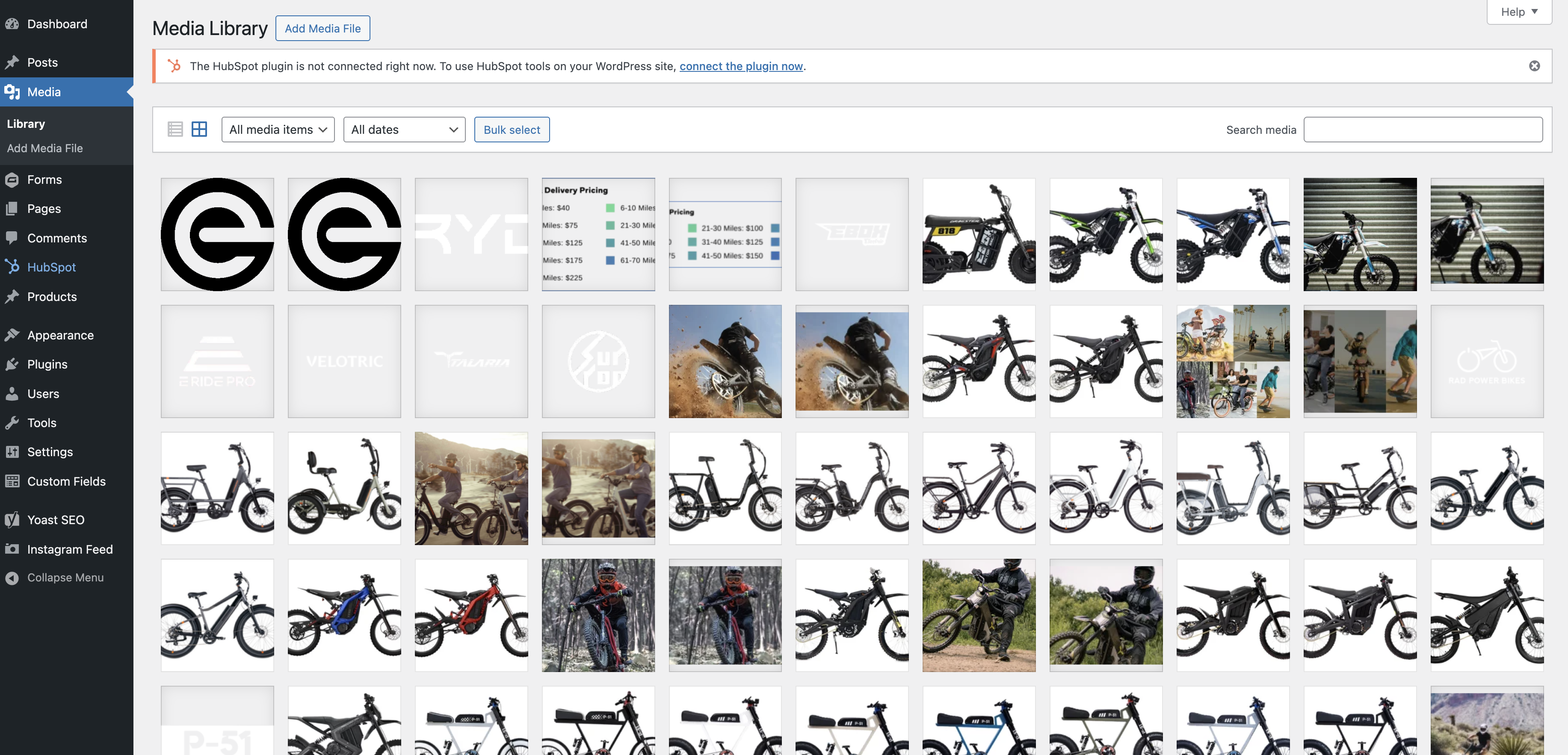
Step 2: Switch to List View
Click the list view icon in the top right. This makes bulk editing easier.
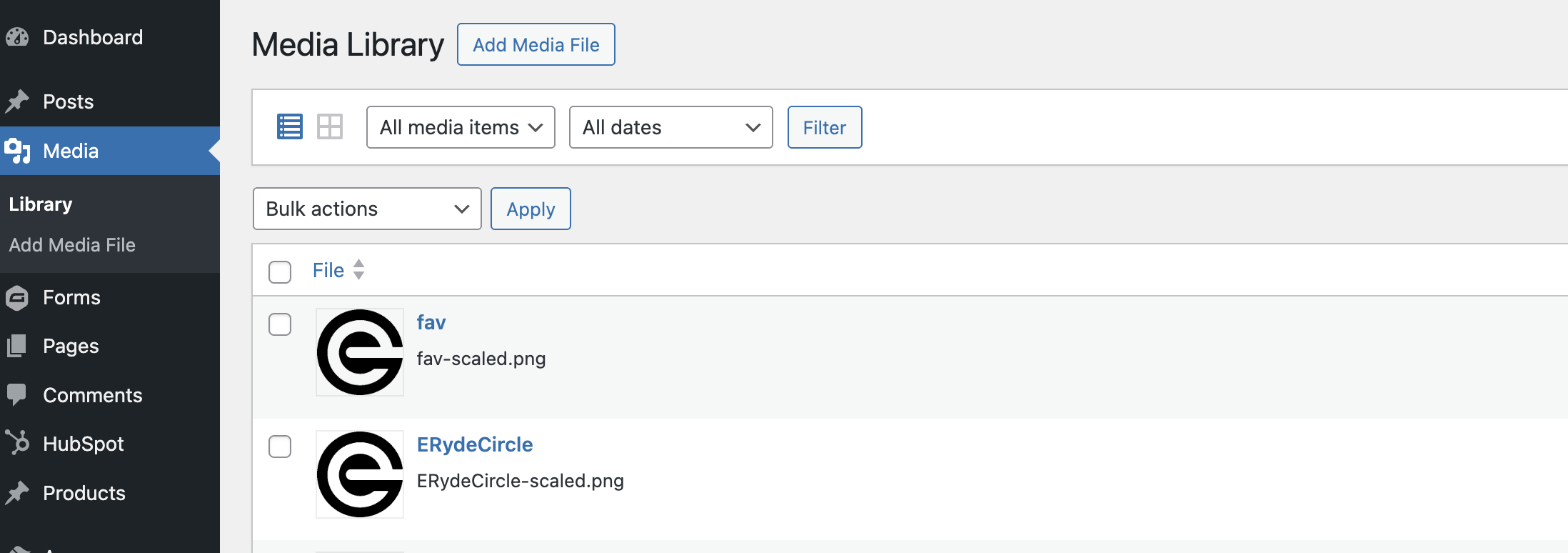
Step 3: Edit Images Individually
Click on each image and add alt text in the "Alternative Text" field. For 100+ images, this becomes impractical.
Method 2: Using Database Queries (Advanced)
Warning: This method requires database access and technical knowledge. Always backup your database first.
You can bulk update alt text using SQL queries via phpMyAdmin, but this approach has major drawbacks:
- Risk of breaking your database if done incorrectly
- No way to generate contextual alt text automatically
- Requires writing custom SQL for each batch
We don't recommend this method unless you're an experienced developer.
Method 3: Automated Alt Text Generation (Recommended)
The most efficient solution is using a plugin that generates alt text automatically using AI. This is the only practical approach for large media libraries.
Using the Altomatic Plugin
Here's how to bulk generate alt text for all your WordPress images in minutes with Altomatic for WordPress:
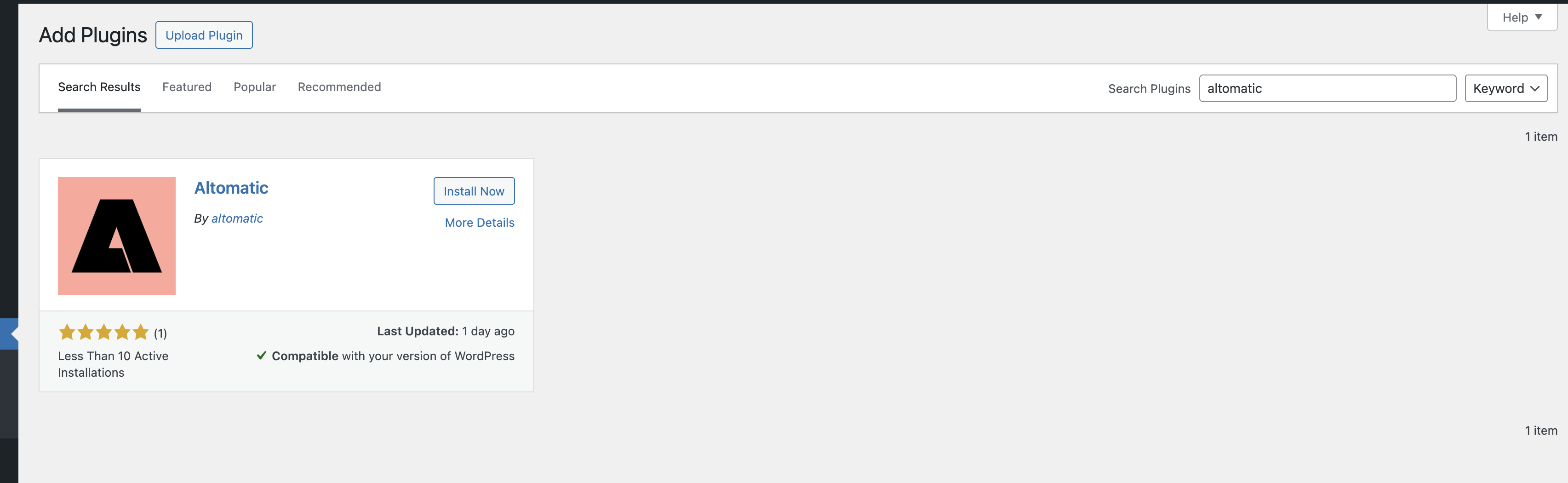
1. Install the Altomatic Plugin
- Go to Plugins → Add New in WordPress
- Search for "Altomatic"
- Click Install, then Activate
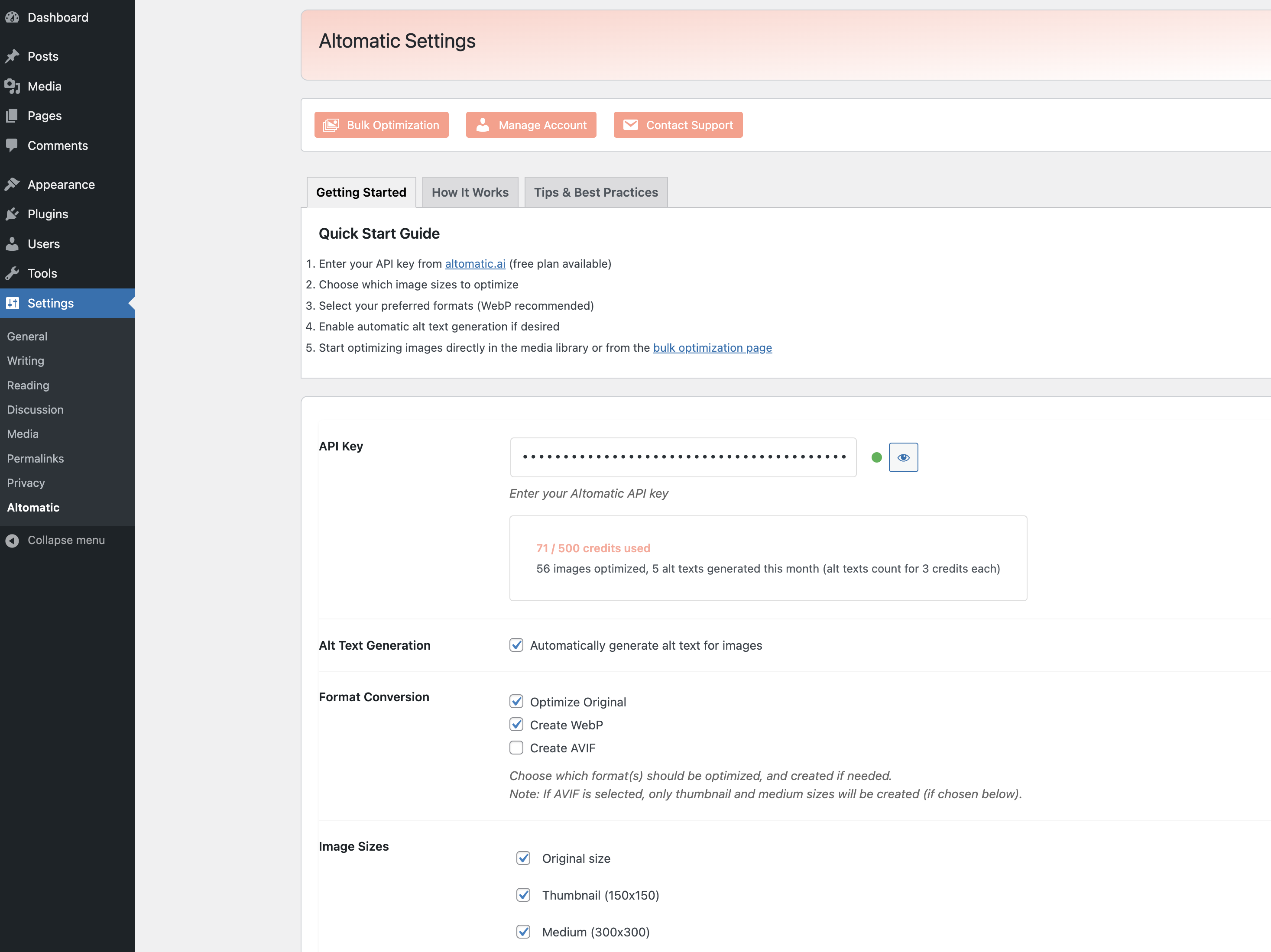
2. Configure Plugin Settings
After activation, navigate to Settings → Altomatic in your WordPress dashboard. Here you'll:
- Enter your API key (you get 50 free credits per month to start)
- Enable "Automatically generate alt text for images"
- Choose format conversion options (WebP, AVIF)
- Select which image sizes to optimize (Original, Thumbnail, Medium, etc.)
3. Run Bulk Optimization
You have two options for optimizing your images:
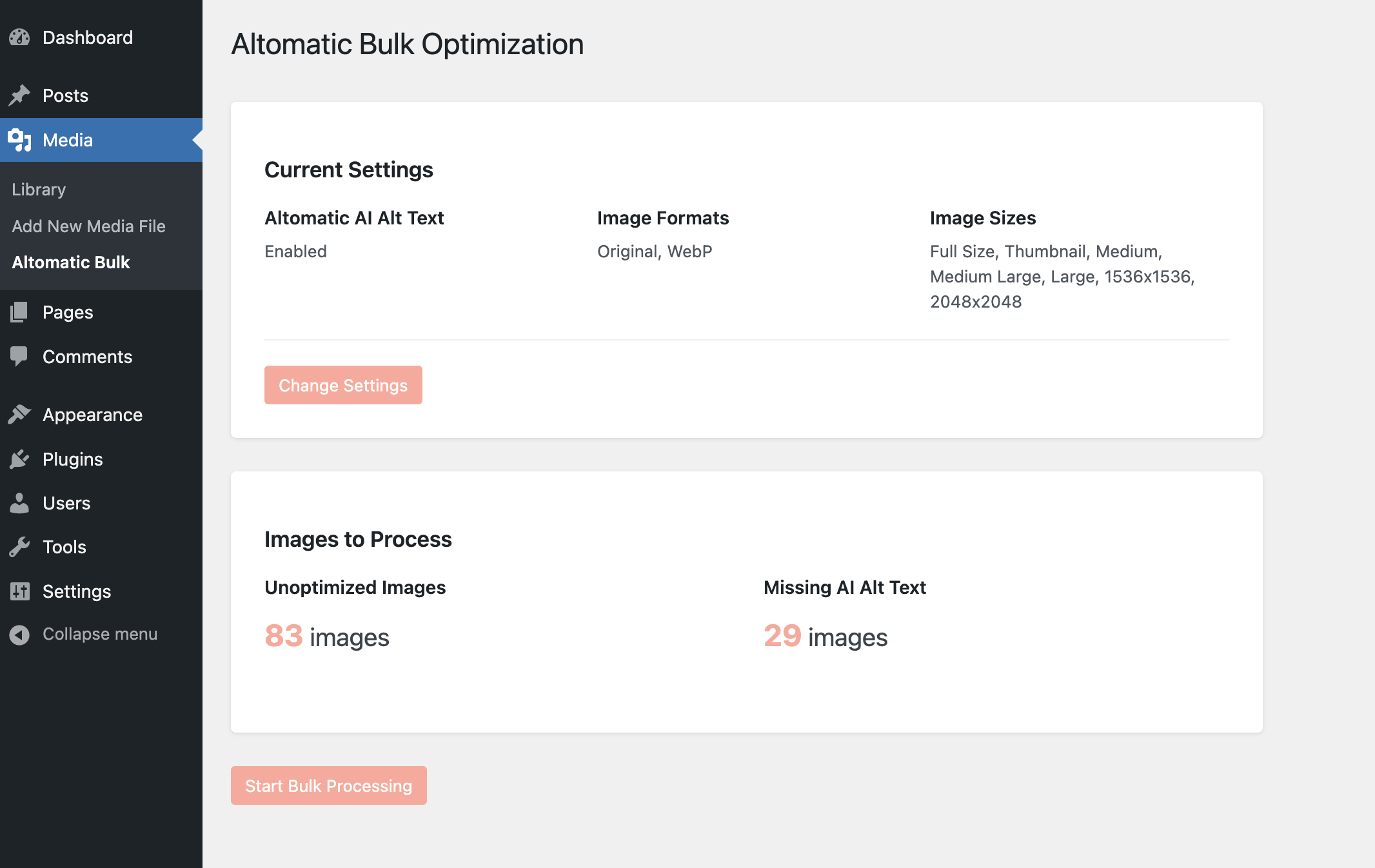
Option A: Bulk Optimize All Images
Go to Media → Bulk Optimization to process your entire media library at once. This is the fastest way to add alt text to hundreds or thousands of images.
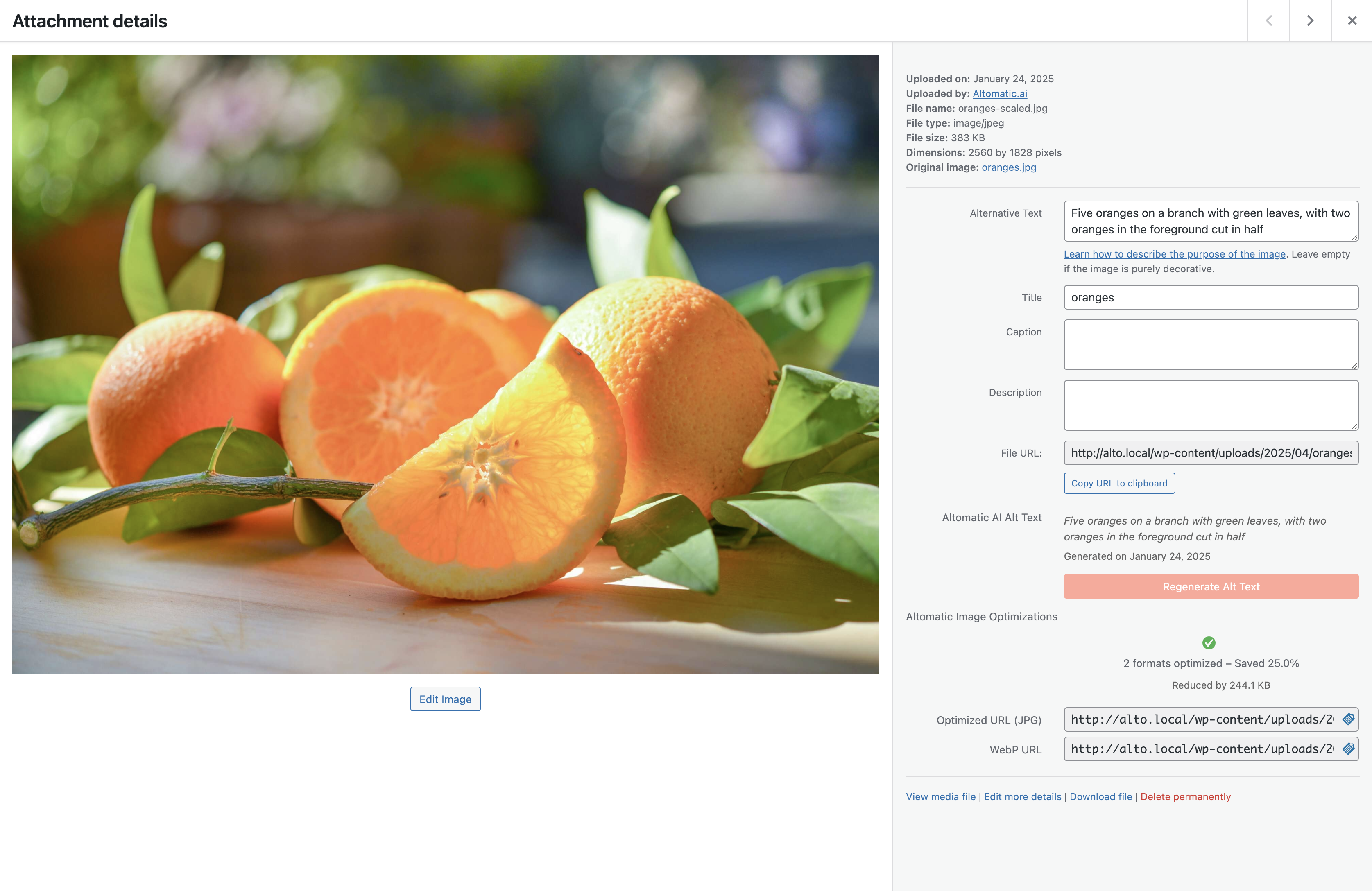
Option B: Optimize Individual Images
In your Media → Library, you'll see optimize buttons next to each image. Click to generate alt text and optimize individual images on demand.
4. Review and Edit
After optimization completes, you can:
- Review all generated alt text in your Media Library
- Edit any alt text directly if you want to refine the AI-generated descriptions
- See which images have been optimized and which formats were created
The AI generates contextual, SEO-friendly alt text based on the actual image content, but you always have full control to customize it for your specific needs. If your site publishes in more than one language, Altomatic can also generate alt text in 50+ languages.
Best Practices for Alt Text
Whether you're writing alt text manually or using AI generation, follow these guidelines. For the full playbook, see our alt text SEO best practices guide.
Be Descriptive But Concise
GOOD EXAMPLE
"Red running shoes on wooden gym floor"AVOID THIS
"image123.jpg" or "shoes"Include Keywords Naturally
If the image is relevant to your target keyword, include it naturally in the description. Don't keyword stuff.
GOOD EXAMPLE
"WordPress dashboard showing media library settings"AVOID THIS
"WordPress WordPress media WordPress library WordPress settings"Avoid "Image of" or "Picture of"
Screen readers already announce it's an image, so don't waste characters.
GOOD EXAMPLE
"Golden retriever puppy playing with tennis ball"AVOID THIS
"Image of a golden retriever puppy playing with a tennis ball"Common Questions
How long does it take to process 1000 images?
With automated tools like Altomatic, processing 1000 images typically takes 15-30 minutes depending on your server speed and image sizes. The plugin processes in batches to prevent timeouts.
Can I edit AI-generated alt text?
Yes. AI-generated alt text is a starting point. You can review and edit any alt text directly in your WordPress media library or during the bulk optimization process.
Will this work with WooCommerce product images?
Absolutely. The bulk alt text generation works with all images in your WordPress media library, including WooCommerce products, gallery images, and featured images.
Does adding alt text improve SEO immediately?
Google needs to recrawl your pages to see the changes. Typically you'll see improvements in image search rankings within 2-4 weeks after adding alt text. Use Google Search Console to request re-indexing for faster results.
Next Steps
Don't let missing alt text hurt your SEO and accessibility. Start with these action items:
- Audit your WordPress media library to see how many images are missing alt text
- Choose your bulk editing method (automated is fastest for 100+ images)
- Process your entire library in batches
- Set up automatic alt text generation for new uploads
Ready to automate your alt text?
Altomatic generates SEO-optimized alt text for all your WordPress images automatically. Get started with 50 free credits per month.